Websites in ArcPanel belong to users: create a user first, then give it a web domain. This guide uses the user alice and the domain example.com; replace them with your own.
Before you start
- You are signed in as administrator (First login).
- The domain's A record points to the server's IP address, or you will point it there in Set up mail and DNS. The website works without it only by IP address, and Let's Encrypt needs it.
Create a user
- Open Users under Accounts in the sidebar and click Add User.
- Account: enter a Username, a Name and an Email, pick a Language, and set a Password of at least 8 characters with upper and lower case letters and a digit (the button next to the field generates one).
- Package: keep
defaultor pick another package. A package sets the user's limits and default templates; administrators also choose the Role (User, Reseller or Administrator) here. - Web domain: enter
example.comin First web domain, withoutwww.. Leave Create DNS zone and Create mail domain on if this server should host the domain's DNS and mail. - Review: check the summary. Fill in Send welcome e-mail to if the user should get their login details, then create the user.
The user can now sign in to the panel with their own account and sees only their own domains.
From the command line, as root:
v-add-user alice 'a-strong-password' alice@example.com default "Alice Example"
Tip
Need different limits? Open Packages under Accounts, click Add Package and set the number of domains, mailboxes, databases, disk quota and backups. Then pick that package for the user.
Add a web domain
If you entered a first web domain when you created the user, it already exists: skip to the next section. Otherwise:
- Open Web in the sidebar and click Add Web Domain. Administrators pick the user first.
- Enter the Domain, without
www.;www.example.comis added as an alias for you. - Keep the IP Address and add more Aliases if you need them, one per line.
- Leave Create DNS zone and Create mail domain on or off as above.
- Save.
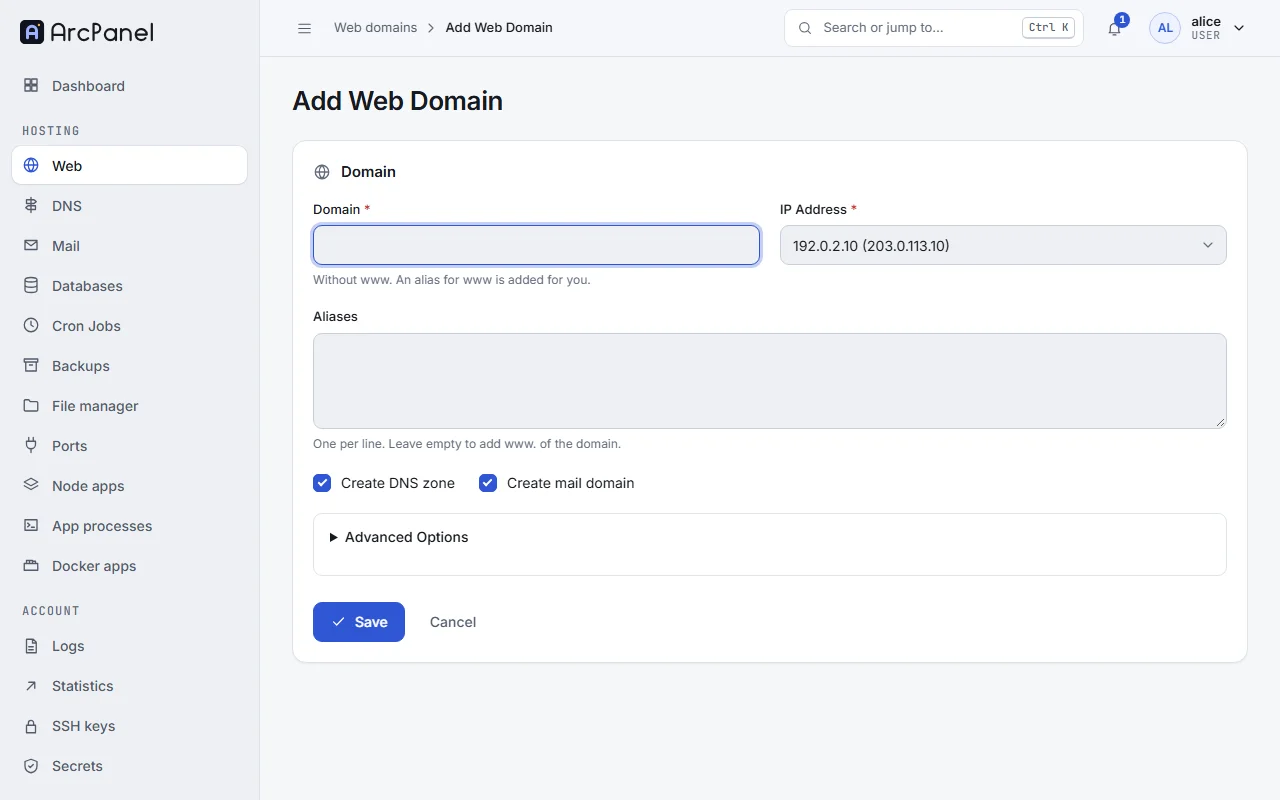
Advanced Options lets you pick the Web Template, Backend Template and Proxy Template from the template catalog. The defaults serve a PHP site; keep them for a first site.
ArcPanel creates the document root /home/alice/web/example.com/public_html with a placeholder page. Open http://example.com to see it.
v-add-web-domain alice example.com
Choose the PHP version
- Open Web, click the domain to edit it, and open the PHP tab.
- Pick the PHP version. The list shows the versions installed on the server.
- Save. The site uses the new version at once.
Issue an SSL certificate
Let's Encrypt checks that the domain and each alias resolve to this server and that the server answers on port 80. Wait until the DNS change has spread before you start.
- Edit the domain and open the SSL tab.
- Turn on Enable SSL for this domain and Use Let’s Encrypt to obtain SSL certificate.
- Turn on Enable automatic HTTPS redirection so that visitors always get HTTPS. Leave Enable SSL HSTS off until the site works over HTTPS.
- Save. After a few seconds the certificate is issued; ArcPanel renews it automatically.
v-add-letsencrypt-domain alice example.com www.example.com
Note
"DNS record for example.com doesn't exist" means the name does not resolve yet. Check the A records of
example.comandwww.example.com, wait, and try again.
Upload the site
Put the files of the site in public_html:
- File manager: open File manager under Files in the sidebar, go to
web/example.com/public_htmland use Upload. The edit page of the domain also has Open document root. - FTP: on the domain's FTP tab, under Additional FTP accounts, add an FTP account with a Username, a Password and a Path inside the domain folder. Connect to the server with any FTP client.
For WordPress and other common applications, Quick Install App on the domain's edit page installs them for you.
Next steps
- Set up mail and DNS for the domain.
- Schedule backups before the site holds anything you would miss.