This guide is for users who want to work with their own backups. To set up the schedule, remote hosts and restic as administrator, read Schedule backups.
Your backups
Open Backups in the sidebar. The list shows the archives of your account, newest first. The server makes one every night; how many are kept depends on your package.
Each archive holds your web domains with their files, DNS zones, mail domains and mailboxes, databases, cron jobs, the other folders of your home directory and the data of your Docker apps.
For each archive:
- Download saves the archive (a
.tarfile) to your computer; - Restore opens it, so you can restore all of it or parts;
- Delete removes it from the server.
Create Backup makes a new archive now. The job runs in the background, and a notification tells you when it is ready. When your account already has as many archives as your package allows, the oldest one is deleted.
Tip
Download an archive from time to time and keep it off the server. It is the copy that still exists if you leave the host or lose access to the account.
Restore from an archive
- Click Restore next to the archive.
- Choose what to restore:
- Restore All replaces your current websites, mail, databases and files with the ones in the archive;
- or tick single items under Web Domains, DNS Domains, Mail Domains, Databases, Cron Jobs and User Directories, and click Restore Selected.
- The restore runs in the background. A notification tells you when it is done.
Restoring a web domain brings back its files and its settings; restoring a database replaces its content with the one in the archive. Items you did not tick stay as they are.
Caution
A restore overwrites what is there now, including changes made since the backup. To be able to go back, click Create Backup first.
Leave things out
Large caches, temporary files and logs make backups slower without being worth restoring. Open the Backup Exclusions tab under Backups and add one entry per line:
| Field | Entry | Leaves out |
|---|---|---|
| Web Domains | example.com:public_html/cache:public_html/tmp |
These folders of example.com |
| Web Domains | staging.example.com |
The whole domain |
| Mail Domains | example.com:newsletter |
The mailbox newsletter@example.com |
| Databases | alice_logs |
This database |
| User Directories | downloads |
This folder of your home directory |
* on its own line leaves out everything of that kind. Exclusions apply to the nightly archives; restic snapshots take the whole home directory and skip only the excluded databases.
Snapshots
When your package includes incremental backups, Backups has a Snapshots tab. Snapshots are made with restic: each one stores only what changed since the last, so there can be many of them.
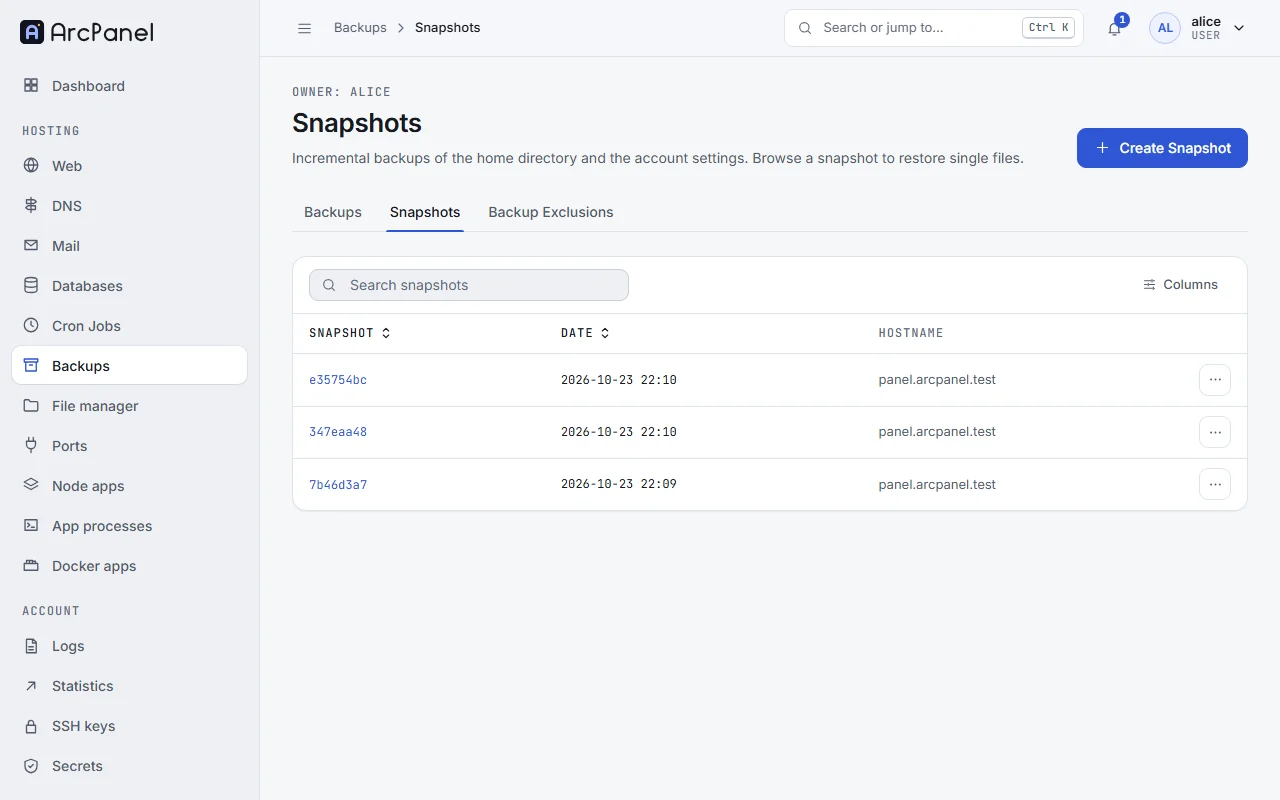
- Create Snapshot queues one; it appears in the list a few minutes later.
- Restore opens a snapshot to restore whole items, like an archive.
- Browse Files lists the files in the snapshot. Pick a file to put that version back in place; the current file is replaced.
- Delete removes the snapshot.
Snapshots cover your home directory (your sites and mail folders), your Docker app data, and a dump of your databases and account settings, which ArcPanel writes to ~/backup just before each snapshot. That is why Restore can bring back web domains, DNS and mail domains, databases and cron jobs, like an archive.
From the command line
Administrators can work with any user's backups as root:
v-backup-user alice
v-list-user-backups alice
v-restore-user alice alice.2026-10-23_05-10-01.tar
To restore only some parts, pass their names. This restores the web domain example.com and the database alice_shop, and skips DNS, mail, cron and the user directories:
v-restore-user alice alice.2026-10-23_05-10-01.tar example.com no no alice_shop no no
Next steps
- Ask your administrator to send the backups to a remote host if they are only on the server; see Schedule backups.
- Test a restore of a small item, so that you know the steps before you need them.