The file manager works with the files of your account in the browser, without FTP. Open File manager under Files in the sidebar, or Open document root on a web domain to go straight to its public_html.
Where you are
The file manager starts in your home directory, shown as ~/. The site files of a domain are in ~/web/example.com/public_html.
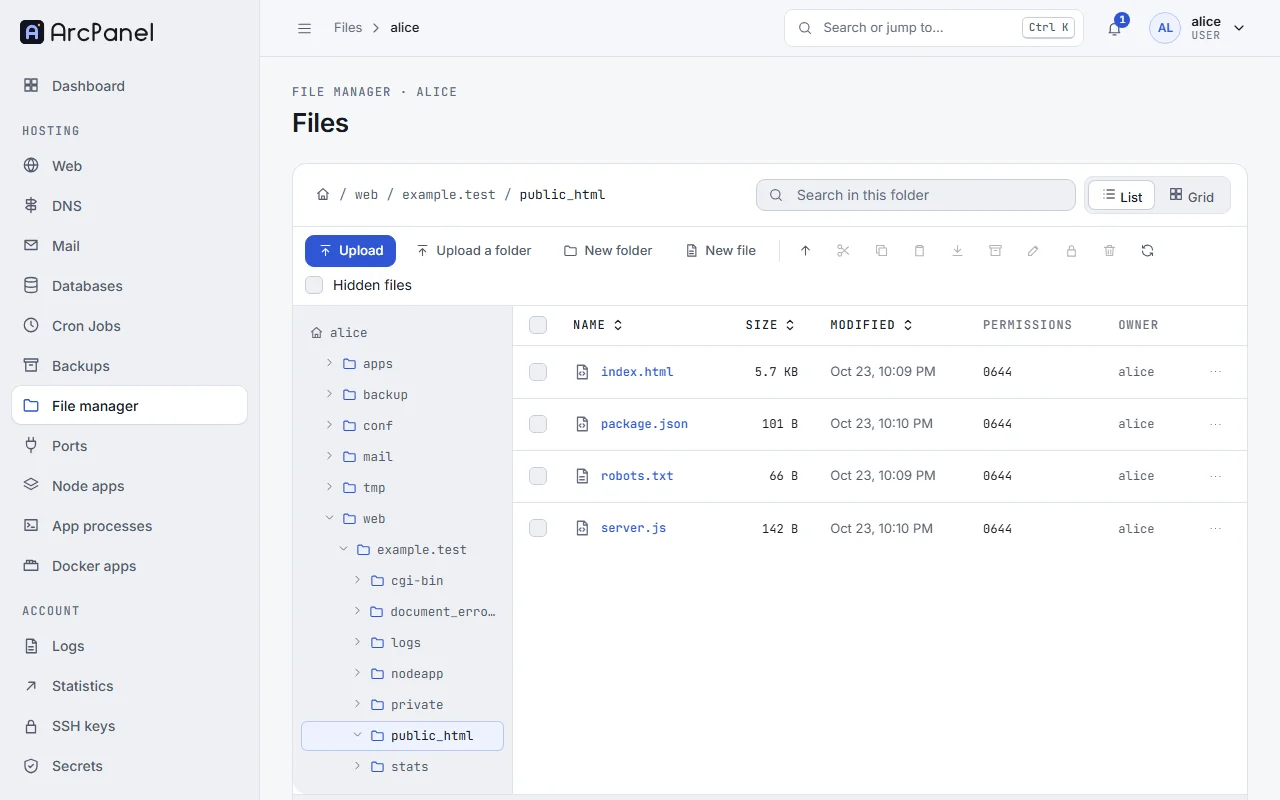
Your home directory, ~/web and the domain folders themselves are read-only: they belong to the panel. Put your files inside public_html, or in folders you create.
Everything you do runs as your user, with your permissions. Administrators who open another user's files see a notice, and their changes run as that user.
Upload
- Upload sends files, Upload a folder a whole folder with its contents.
- Or drag files from your computer onto the list.
Files up to 4 GB are uploaded in pieces, so a dropped connection does not start over. Uploads count against your disk quota.
To upload a site, it is faster to compress it to a zip on your computer, upload the zip and use Extract here.
Work with files
Select a file or folder and use the toolbar, or right-click it for the menu:
| Action | What it does |
|---|---|
| New folder, New file | Create one in the current folder |
| Open, Edit, View, Preview | Open a folder, edit a text file, view or preview other files |
| Rename | Rename |
| Copy, Cut, Paste | Copy or move with the clipboard |
| Copy to…, Move to… | Copy or move to a folder you pick |
| Download, Download as zip | Save a file, or a folder as a zip |
| Compress to zip | Make a zip of the selection |
| Extract here, Extract to a new folder | Unpack an archive |
| Permissions | Change who may read, write and run it |
| Delete | Delete; this cannot be undone |
Hidden files shows files whose names start with a dot, such as .htaccess and .env. List and Grid switch the view, and Search in this folder finds files by name.
Archives
Extract unpacks zip, tar, tar.gz (tgz), tar.bz2, tar.zst, 7z and rar archives, and single .gz, .bz2 and .zst files.
The editor
Text files up to 2 MB open in the editor, with Find, Wrap lines and Save (Ctrl+S). Larger files can be downloaded and edited on your computer.
Permissions
The Permissions dialog sets Read, Write and Execute for the owner, the group and others, or a numeric Mode. For a folder, Apply to everything inside the folder sets a Folder mode and a File mode for its contents. The usual values for a website are 755 for folders and 644 for files.
Warning
Do not make files writable by everyone (
777). The site works the same without it, and it lets other processes change your files.
Keyboard shortcuts
Press ? or click Shortcuts for the list.
| Key | Action |
|---|---|
Enter |
Open |
Backspace |
Up one folder |
F2 |
Rename |
Del |
Delete |
Ctrl+C, Ctrl+X, Ctrl+V |
Copy, cut, paste |
Ctrl+A |
Select all |
↑, ↓ |
Move the selection |
/ |
Search in this folder |
Ctrl+S |
Save, in the editor |
Next steps
- Web domains and templates: FTP accounts for people who prefer an FTP client.
- Backups: restore a file from a snapshot when you deleted it by mistake.